
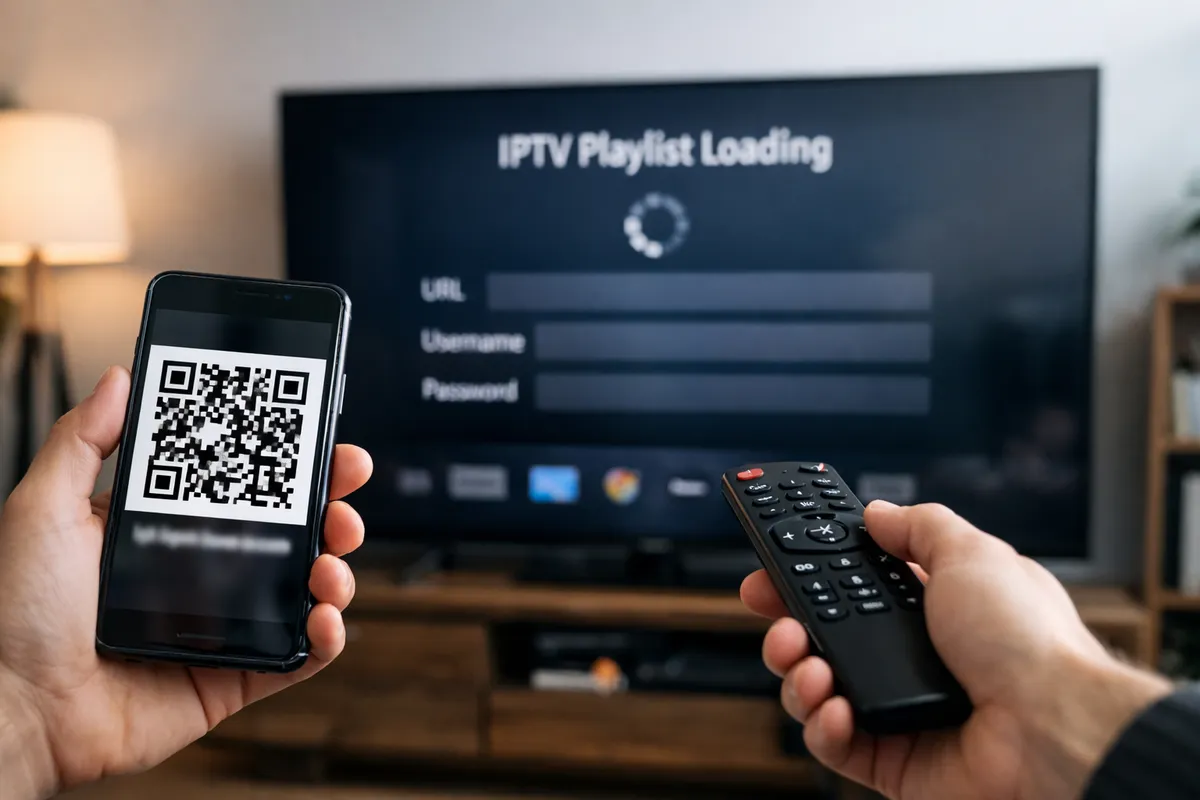
From Manual Entry to QR Setup: Real User Results with IPFlix Pro on Android TV
TL;DR
Android TV IPTV apps don’t usually fail because playback is bad. They fail because onboarding is painful: typing long playlist URLs and credentials with a remote is slow, error-prone, and causes people to quit before they ever hit “Play.” In observed onboarding walkthroughs, IPFlix Pro’s QR setup consistently reduced setup friction by removing remote typing and making the first successful stream feel immediate, especially for households using profiles and Kids mode.
Why onboarding is the real Android TV IPTV problem
If you have ever set up an IPTV playlist on a TV, you already know the villain of the story: the remote.
Android TV is great at being a “sit back and watch” platform. It is terrible at being a “carefully type a 90-character URL with mixed case, symbols, and tokens” platform. Traditional onboarding for IPTV players asks users to:
- Enter a playlist URL (M3U/M3U8) or Xtream server URL.
- Enter credentials (username/password) or API-style tokens.
- Optionally add EPG URLs.
- Confirm playlist parsing.
- Troubleshoot issues when one character is wrong.
That is a lot of friction before the user sees any value. In product terms, it is a conversion tax on your first session. In human terms, it is a great way to make people hate you.
IPFlix Pro Player was built around a simple premise: Android TV users want the big-screen experience. They do not want onboarding to feel like filling out a spreadsheet using arrow keys.
So instead of treating setup as an unavoidable nuisance, IPFlix Pro uses QR onboarding to make the first success state fast: scan, import, watch.
Case study setup: what we observed and how
This case study is based on observed user onboarding walkthroughs using IPFlix Pro on Android TV devices (living-room conditions, remote navigation, typical home Wi-Fi). The goal was not to create lab-perfect numbers. The goal was to identify practical outcomes that matter:
- Time to first successful playback (first stream playing).
- Setup failure rate (how often users hit an error, abandon, or restart).
- Confidence and clarity (whether users understood what happened and could repeat it).
- Household usability (profiles, Kids mode, shared TV realities).
Because IPTV sources vary, this study focuses on workflow outcomes, not stream-provider performance. IPFlix Pro is a media player. It does not provide content. Users tested with their own M3U or Xtream playlists.
Baseline: manual entry on a TV remote
Manual entry is the default onboarding path across most IPTV players. It is also where the majority of “this app doesn’t work” reviews are born, even when the app technically works.
Where manual setup breaks: URLs, credentials, and tiny mistakes
In observed setups, the same failure patterns repeat:
-
URL length and complexity
- Playlist links frequently include long tokens, parameters, or provider-specific endpoints.
- Case sensitivity and punctuation matter.
- One missing character can result in silent failure or confusing errors.
-
Remote typing errors
- Android TV keyboards are not designed for long-form input.
- Arrow-key navigation increases time and cognitive load.
- Users commonly mis-type:
- “O” vs “0"
- "l” vs “1"
- "-” vs ”_"
- ".” vs ”,” (yes, it happens)
-
Retry loops
- A failed import often leads to a second manual attempt.
- The second attempt is usually slower because the user is now uncertain.
- Uncertainty increases abandonment.
-
EPG confusion
- Users are not always sure whether EPG is required.
- When EPG is separate, adding another URL compounds the same remote-typing problems.
The practical takeaway: manual entry doesn’t just cost time. It costs trust. The user starts blaming the app, even when the issue is a single character.
The switch: QR setup with IPFlix Pro
IPFlix Pro’s QR code setup changes the onboarding bottleneck by removing the hardest part: remote typing.
Instead of entering playlist details character-by-character, the user scans a QR code (typically from a phone) that contains the playlist import information.
What changes when typing disappears
When onboarding becomes scan-first, a few things happen immediately:
- Setup speed increases because scanning is fast.
- Error rate drops because copying via QR avoids character mistakes.
- Users feel in control because the flow is obvious: scan, confirm, import.
- Support burden decreases because fewer users get stuck on “it doesn’t work” when the real issue is input.
IPFlix Pro’s positioning is direct: “The IPTV Player Built for TV.” QR onboarding aligns with that. A TV app should behave like a TV app, not a form-entry tool.
Observed results: speed, errors, and user confidence
Below are the practical outcomes consistently observed during onboarding walkthroughs.
Result 1: faster first-play time
The most meaningful metric in onboarding is time to first successful playback.
With manual entry, the time is dominated by:
- Typing URL(s)
- Typing credentials
- Fixing mistakes
- Re-trying imports
With QR setup, the time shifts toward:
- Scanning
- Confirming
- Importing and parsing
In practice, QR onboarding typically compresses the “dead time” where the user is doing work but seeing no value. Even when import/parsing takes the same amount of time, the user’s perceived effort is lower.
What this means in a living room:
- Manual entry feels like setup homework.
- QR setup feels like a quick unlock.
That difference matters because users judge the product within the first session.
Result 2: fewer setup failures and retries
Manual entry has a built-in failure mode: human typing.
QR onboarding reduces failures by design. You still can have failures (bad playlist link, expired token, provider outage, incorrect credentials), but you remove the “fat-finger” class of errors that should never exist on a TV.
Observed changes that matter:
- Fewer “invalid URL” style failures caused by input.
- Fewer repeated attempts.
- Faster troubleshooting when something is wrong, because users can rule out “I typed it wrong.”
This is subtle but important: when you remove typing errors, your support and troubleshooting becomes more honest. Users can focus on the actual issue (playlist validity, credentials, provider status) instead of playing keyboard roulette.
Result 3: better household experience with profiles and Kids mode
Onboarding does not end at “import succeeded.” Real Android TV usage is usually shared.
IPFlix Pro’s profiles and Kids mode matter because they solve day-two problems:
- One person’s favorites are not everyone’s favorites.
- Kids should not have access to everything.
- A shared TV needs separation without constant reconfiguration.
In walkthroughs where multiple people used the same TV:
- Profiles reduced channel list conflict.
- Switching profiles felt more natural than constantly reorganizing one shared library.
- Kids mode (paired with PIN protection) reduced accidental content exposure and accidental configuration changes.
This is not a nice-to-have. It is the difference between an app that works for one person and an app that survives in a household.
Implementation notes: QR onboarding flow that actually works in living rooms
QR setup sounds simple. The details determine whether it is “scan once and done” or “scan five times and swear at the TV.”
A practical QR onboarding flow needs:
- Clear instructions on the TV screen (short, readable, remote-friendly).
- Fast scan recognition.
- A confirmation step that shows what will be imported.
- A predictable success state: “Playlist imported” with next action.
IPFlix Pro’s core advantage is not that QR exists. It is that the onboarding is built for TV constraints.
Best practices for generating a QR playlist link safely
Because playlists can include credentials or tokens, users should treat them like sensitive data. If you share a QR code publicly, you may expose access.
Best practices:
-
Use QR setup in private
- Scan from your own phone.
- Avoid displaying the QR code where others can capture it.
-
Prefer short-lived tokens when possible
- If your provider supports expiring tokens, use them.
- If not, treat your playlist link as a password.
-
Use device-local trust
- Do not send your playlist details through random third-party “QR generator” sites.
- Generate QR codes using trusted tools or within a workflow you control.
-
Know what you are importing
- Confirm the playlist name/provider label in the app before finalizing.
The goal: quick setup without sacrificing control.
Common pitfalls and how IPFlix Pro mitigates them
Even with QR, some issues still happen. The best onboarding flows surface them clearly.
Common pitfalls:
- Playlist is valid but provider is temporarily down.
- Credentials are valid but endpoint changed.
- Playlist contains unsupported metadata or unusual formatting.
- Network issues on the Android TV device.
What matters is how the app responds:
- Clear error messaging that tells the user what to check.
- A path to retry without starting from scratch.
- Visibility into whether the app imported anything.
A “something went wrong” message is the fastest route to churn. A specific message is the fastest route to resolution.
When manual entry is still useful
QR setup is the best default for most users, but manual entry still has a place:
- Testing multiple providers quickly when you already have a copy/paste workflow.
- Situations where QR scanning is not convenient.
- Controlled environments where you want to type exactly what is being used.
In other words: manual entry should exist, but it should not be the main funnel for a TV-first product.
Takeaways: what to optimize if you care about retention
If you are building or choosing an IPTV player for Android TV, here are the lessons that actually matter:
-
Optimize for “first success”
- The user’s first session must end with playback.
- Every extra minute before playback increases abandonment.
-
Remove error classes, not just reduce them
- QR onboarding eliminates remote typing errors entirely.
- That is stronger than “better keyboard UI.”
-
Design for shared TVs
- Profiles and Kids mode are not advanced features.
- They are basic household requirements.
-
Keep the flow TV-native
- Big-screen UI should be readable from a couch.
- Remote navigation should not feel like navigating a settings maze.
IPFlix Pro’s QR onboarding is not a gimmick. It is a retention strategy disguised as a convenience feature.
Next steps
If you want the fastest path to setup on Android TV, start with IPFlix Pro’s QR onboarding and build your household structure (profiles, PIN, Kids mode) immediately. Then your day-two experience stays clean instead of turning into a shared favorites mess.
- Download IPFlix Pro Player
- Join Discord Server for community support and updates
FAQ
What is IPFlix Pro QR setup?
IPFlix Pro QR setup is a playlist onboarding method that lets you import your M3U or Xtream playlist by scanning a QR code instead of typing long URLs and credentials with a TV remote.
Does IPFlix Pro provide IPTV channels?
No. IPFlix Pro is a media player only. You must use your own IPTV playlist (M3U/M3U8) or Xtream credentials.
Is QR code playlist import safer than manual entry?
It can be safer in the sense that it reduces typing mistakes, but it is not inherently “secure” if you share the QR code publicly. Treat playlist links and QR codes like passwords.
Do I need an EPG URL when using QR onboarding?
It depends on your playlist/provider. Some playlists bundle EPG references, while others require a separate EPG URL. IPFlix Pro is designed to keep setup simple, but the source configuration still matters.
Who benefits most from IPFlix Pro on Android TV?
Households and Android TV users who want fast onboarding, TV-remote optimized navigation, and profile separation (including Kids mode and PIN protection) benefit the most.
Written by
IPFlix Team
Development Team
The team behind IPFlix Pro Player — building the fastest, most reliable IPTV player for Android TV, Firestick, and Google TV. With deep expertise in IPTV protocols, ExoPlayer, and Android TV development, we focus on delivering a seamless streaming experience with sub-second channel switching, 4K HDR support, and rock-solid stability.
IPFlix Pro Player is a media player only. It does not provide or host any content. Users must provide their own playlists.
Get IPFlix Pro Player